> ## Documentation Index
> Fetch the complete documentation index at: https://docs.danahq.com/llms.txt
> Use this file to discover all available pages before exploring further.
# Connecting Notion
> Bring your Notion pages, prep docs, and meeting notes into your Dana briefs.
Connecting Notion lets Dana use your pages to make briefs more personal. Instead of starting from scratch every meeting, Dana surfaces what you've already written and the prep work you've already done.
Notion is a **personal integration**. The connection is yours, not your workspace's — your teammates won't see your Notion data in their briefs.
## What flows from Notion into your briefs
When you connect Notion, Dana starts pulling from your pages to enrich every brief:
* **What you've already written about the people you're meeting** — past notes, mentions, anything where they show up in your Notion workspace
* **Your prep docs and agendas for this specific meeting** — Dana matches them by meeting title and date automatically
* **Notes from past meetings in the same series** — including anything Notion's AI Notetaker captured for you
All Notion content shows up as **citations** in your brief. Click any Notion citation to jump directly to the original page.
## How Dana searches your Notion
Dana makes multiple search queries to find the most relevant data for each brief:
* **By meeting title**: find prep docs, agendas, and past meeting notes for the same series
* **By attendee names and emails**: find any Notion page that mentions the people you're meeting
If the initial search doesn't return enough results, Dana runs a broader follow-up search using the meeting title, organizer, and attendee names to make sure relevant context isn't missed.
## Before you start
You'll need:
* An active Dana account
* A Notion account with access to the workspace you want to connect
## Connect Notion to Dana
Go to **Settings → Integrations**.
Under **Personal integrations**, click **Notion**.
Click **Connect Notion**. A popup will open for MCP authorization. You'll see a prompt to confirm the connection URL — click **"I recognize and trust this URL"** to proceed, then click **Continue** to complete the authorization.
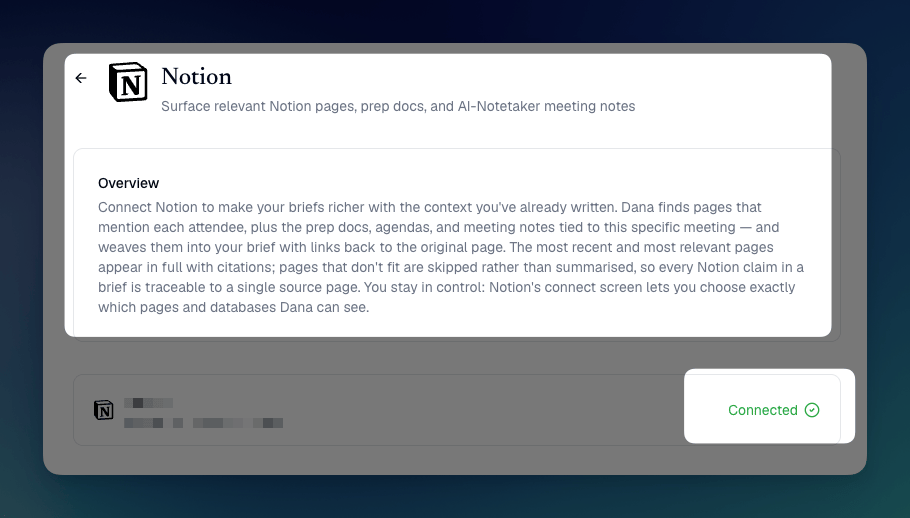
Notion will show as **Connected** in your integrations list. Dana now has access to your Notion pages for brief generation.
 Want Dana to find your prep docs more easily? Make sure the page title or date matches the meeting. That's how Dana surfaces them automatically.
## Tip: Tell Dana how to use your Notion data
If you want Dana to prioritize Notion content in your briefs, add it to your [custom instructions](/features/custom-instructions):
1. Go to **Settings → Brief Settings**
2. Scroll to **Custom Instructions**
3. Add something like: *"Prioritize Notion prep docs and past meeting notes over generic LinkedIn data."*
4. Hit **Regenerate** on any existing brief to test it
## Troubleshooting
During Notion MCP authorization, the popup may show "api.d.com" or a similar URL instead of a branded Dana URL. This is expected — click "I recognize and trust this URL" to proceed. A more user-friendly URL is planned for a future update.
Try regenerating an existing brief after connecting. Dana searches by meeting title and attendee names, so make sure your Notion pages contain relevant names or matching meeting titles. If data still doesn't appear, disconnect and reconnect from **Settings → Integrations**.
## Disconnecting Notion
To disconnect Notion from Dana:
1. Go to **Settings → Integrations**
2. Find **Notion** under Personal integrations and click **Disconnect**
3. Confirm
Disconnecting removes Dana's access to your Notion pages. Future briefs will no longer pull from Notion. Previously generated briefs that cited Notion data will retain those citations.
Want Dana to find your prep docs more easily? Make sure the page title or date matches the meeting. That's how Dana surfaces them automatically.
## Tip: Tell Dana how to use your Notion data
If you want Dana to prioritize Notion content in your briefs, add it to your [custom instructions](/features/custom-instructions):
1. Go to **Settings → Brief Settings**
2. Scroll to **Custom Instructions**
3. Add something like: *"Prioritize Notion prep docs and past meeting notes over generic LinkedIn data."*
4. Hit **Regenerate** on any existing brief to test it
## Troubleshooting
During Notion MCP authorization, the popup may show "api.d.com" or a similar URL instead of a branded Dana URL. This is expected — click "I recognize and trust this URL" to proceed. A more user-friendly URL is planned for a future update.
Try regenerating an existing brief after connecting. Dana searches by meeting title and attendee names, so make sure your Notion pages contain relevant names or matching meeting titles. If data still doesn't appear, disconnect and reconnect from **Settings → Integrations**.
## Disconnecting Notion
To disconnect Notion from Dana:
1. Go to **Settings → Integrations**
2. Find **Notion** under Personal integrations and click **Disconnect**
3. Confirm
Disconnecting removes Dana's access to your Notion pages. Future briefs will no longer pull from Notion. Previously generated briefs that cited Notion data will retain those citations.