> ## Documentation Index
> Fetch the complete documentation index at: https://docs.danahq.com/llms.txt
> Use this file to discover all available pages before exploring further.
# Connecting Slack
> Surface recent Slack messages with each attendee inside your meeting briefs.
Connecting Slack lets Dana surface recent messages with each attendee inside your meeting briefs. Walk into every meeting knowing the latest from your Slack conversations, no more manual digging through threads right before a call.
Slack is a **personal integration**. The connection is yours, not your workspace's, so your teammates won't see your Slack data in their briefs.
## Before you start
You'll need:
* An active Dana account
* A Slack account with access to the workspace you want to connect
## Connect Slack to Dana
Go to **Settings → Integrations**.
Under **Personal integrations**, click **Slack**.
Click **Connect Slack**. A popup will open for MCP authorization. Follow the prompts to authorize Dana's access to your Slack workspace.
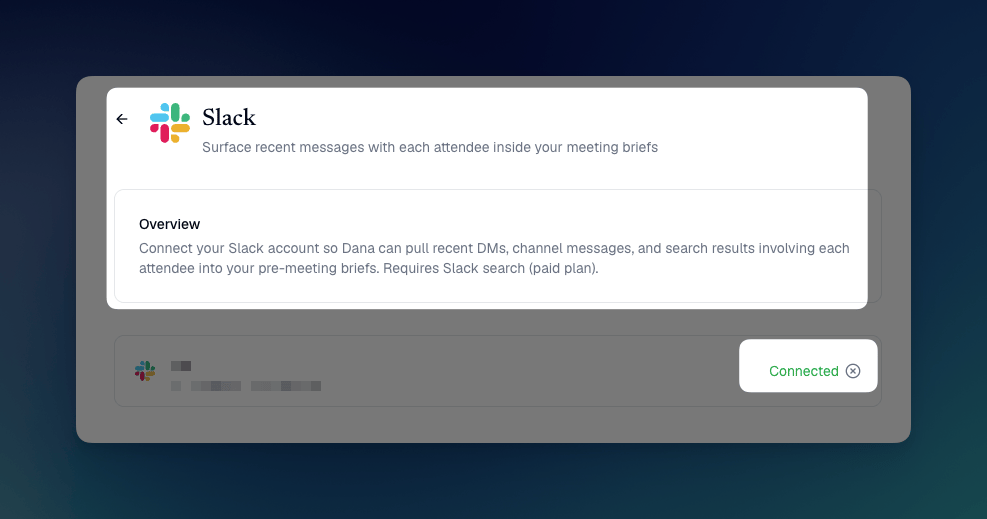
Slack will show as **Connected** in your integrations list. Dana now has access to your Slack messages for brief generation.
 ## What flows from Slack into your briefs
Once connected, Dana surfaces:
* **Recent messages with each meeting attendee**: relevant Slack conversations are pulled into your brief so you have the latest context going in
All Slack data appears as **citations** in your brief. Hover over any Slack citation marker to see the source and context, or click to view the original message.
## How Slack fits into the citation system
Dana's citation system is extensible — Slack messages are treated as a source alongside email, calendar, LinkedIn, notes, Dex, and Notion. Every claim in your brief that references a Slack conversation links back to the original message, so you can trace any insight to where it came from.
## Tip: Tell Dana how to use your Slack data
If you want Dana to prioritize Slack context in your briefs, add it to your [custom instructions](/features/custom-instructions):
1. Go to **Settings → Brief Settings**
2. Scroll to **Custom Instructions**
3. Add something like: *"Include the most recent Slack messages with each attendee in the brief."*
4. Hit **Regenerate** on any existing brief to test it
## Troubleshooting
Try regenerating an existing brief after connecting. If Slack data still doesn't appear, disconnect and reconnect from **Settings → Integrations**.
## Disconnecting Slack
To disconnect Slack from Dana:
1. Go to **Settings → Integrations**
2. Find **Slack** under Personal integrations and click **Disconnect**
3. Confirm
Disconnecting removes Dana's access to your Slack messages. Future briefs will no longer pull from Slack. Previously generated briefs that cited Slack data will retain those citations.
## What flows from Slack into your briefs
Once connected, Dana surfaces:
* **Recent messages with each meeting attendee**: relevant Slack conversations are pulled into your brief so you have the latest context going in
All Slack data appears as **citations** in your brief. Hover over any Slack citation marker to see the source and context, or click to view the original message.
## How Slack fits into the citation system
Dana's citation system is extensible — Slack messages are treated as a source alongside email, calendar, LinkedIn, notes, Dex, and Notion. Every claim in your brief that references a Slack conversation links back to the original message, so you can trace any insight to where it came from.
## Tip: Tell Dana how to use your Slack data
If you want Dana to prioritize Slack context in your briefs, add it to your [custom instructions](/features/custom-instructions):
1. Go to **Settings → Brief Settings**
2. Scroll to **Custom Instructions**
3. Add something like: *"Include the most recent Slack messages with each attendee in the brief."*
4. Hit **Regenerate** on any existing brief to test it
## Troubleshooting
Try regenerating an existing brief after connecting. If Slack data still doesn't appear, disconnect and reconnect from **Settings → Integrations**.
## Disconnecting Slack
To disconnect Slack from Dana:
1. Go to **Settings → Integrations**
2. Find **Slack** under Personal integrations and click **Disconnect**
3. Confirm
Disconnecting removes Dana's access to your Slack messages. Future briefs will no longer pull from Slack. Previously generated briefs that cited Slack data will retain those citations.