

Dex is a personal integration. The connection is yours, not your workspace’s, so your teammates won’t see your Dex data in their briefs.
Before you start
You’ll need:- An active Dana account
- An active Dex account, logged in on the same browser
Connect Dex to Dana
1
Open Dana settings
Go to Settings → Integrations.
2
Find Dex under Personal integrations
Under Personal integrations, click Dex.
3
Authorize the connection
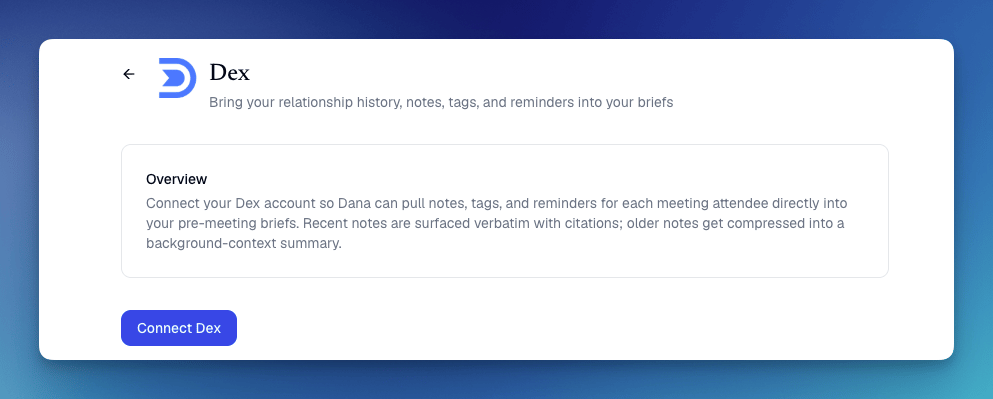
Click Connect Dex. A window will open for MCP authorization. If you’re already logged into Dex in your browser, it will authorize automatically and close the window. If not, sign in to Dex first, and the authorization will complete.
4
You're done
Dex will show as Connected in your integrations list. Dana now has access to your Dex contacts, notes, and reminders.
What flows from Dex into your briefs
Once connected, Dana automatically pulls the following from Dex when generating briefs:- Notes: your contact notes appear as cited sources in briefs. The citation tooltip shows a snippet of the note, which contact it was created for, and a link to that contact in Dex.
- Relationship history: past interactions and timeline data for contacts
- Tags: how you’ve categorized the contact
- Reminders: active reminders for a contact may surface as suggested action items or opening questions in your brief
How Dex data appears in briefs
In a group meeting, Dana attributes each Dex note to the specific contact it was created for, so it’s clear which insight came from which relationship. For example, a talking point about internationalization might cite a Dex note created for one attendee, while a follow-up item cites a reminder set for another. Note citations link to the Dex contact page (deep linking to the specific note is not yet supported).Tip: Tell Dana how to use your Dex data
If you want Dana to emphasize Dex relationship history in your briefs, add it to your custom instructions:- Go to Settings → Brief Settings
- Scroll to Custom Instructions
- Add something like: “Always include the most recent Dex note and any active reminders for each contact at the top of the brief.”
- Hit Regenerate on any existing brief to test it
Troubleshooting
I connected Dex but my data isn't showing up in briefs
I connected Dex but my data isn't showing up in briefs
Try regenerating an existing brief after connecting. If Dex data still doesn’t appear, disconnect and reconnect from Settings → Integrations, making sure you’re logged into Dex in the same browser.
I don't see Dex in my Integrations list
I don't see Dex in my Integrations list
Make sure you’re on the latest version of Dana. If Dex still isn’t listed, contact support at support@danahq.com.
Citation links don't go to the specific note
Citation links don't go to the specific note
Currently, Dex citation links open the contact page in Dex, not the individual note. Deep linking to specific notes is planned for a future update.
Disconnecting Dex
To disconnect Dex from Dana:- Go to Settings → Integrations
- Find Dex under Personal integrations and click Disconnect
- Confirm