

HubSpot is a personal integration. The connection is yours, not your workspace’s — your teammates won’t see your HubSpot data in their briefs.
What flows from HubSpot into your briefs
Once connected, Dana fetches the following from HubSpot when generating briefs:- Contacts - contact records and associated data for meeting attendees
- Companies — company details linked to your contacts
- Deals — deal stage, pipeline status, and related context
- Notes — CRM notes attached to contacts
- Calls — logged call records and summaries
- Emails — email history tracked in HubSpot
- Meetings — past meeting records
- Tasks — open or completed tasks associated with contacts
- Tickets — support or service tickets linked to contacts
- Orders — order history if applicable
Before you start
You’ll need:- An active Dana account
- A HubSpot account with access to the data you want Dana to use
Connect HubSpot to Dana
1
Open Dana settings
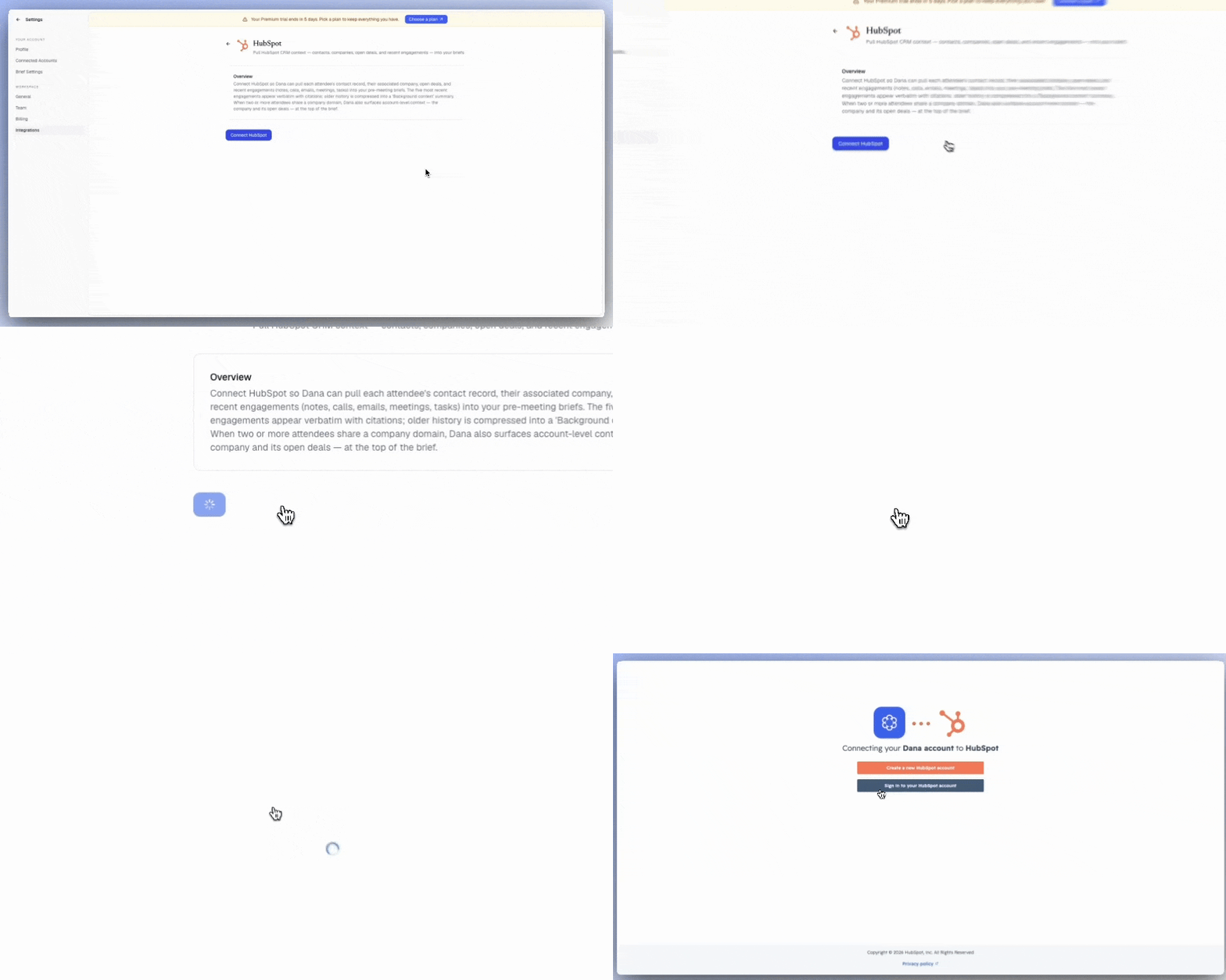
Go to Settings → Integrations.
2
Find HubSpot under Personal integrations
Under Personal integrations, click HubSpot.
3
Choose your HubSpot account
Click Connect HubSpot. A popup will show your available HubSpot accounts. Select the account you want to connect and click Choose account.
4
Review permissions
HubSpot will ask you to review the permissions you’re granting Dana. Select view only access — Dana only needs read permissions to fetch contacts, companies, emails, calls, notes, and other objects. Click Connect app.
5
Accept the connection
You may see a warning asking you to type “I accept the risk” before proceeding. This is because Dana’s HubSpot app hasn’t been listed on the HubSpot Marketplace yet — the Danahq.com domain is verified, but marketplace listing requires additional steps. This is temporary and will be resolved in a future update. Type the confirmation and click Connect.
6
You're done
HubSpot will show as Connected in your integrations list. All future briefs will automatically fetch relevant HubSpot data for your meetings.
How HubSpot data appears in briefs
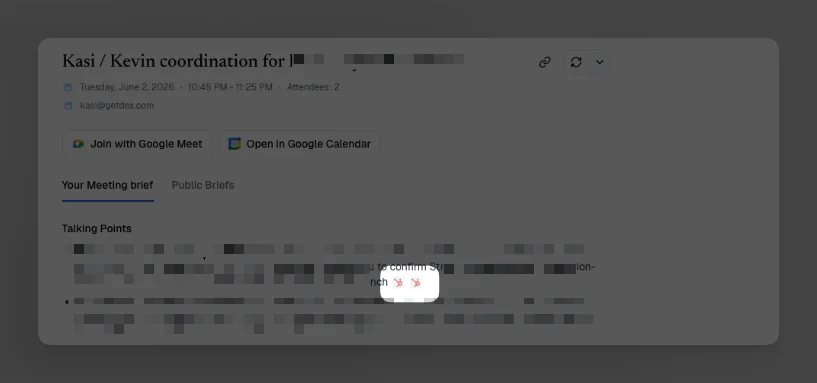
HubSpot data shows up as citations in your brief, just like email, calendar, and other sources. Each citation includes a deep link back to the original HubSpot object — whether it’s a contact record, a logged call, a task, or a deal. Hover over any HubSpot citation to see the source type and a preview. Click it to jump directly to that record in HubSpot.Tip: Tell Dana how to use your HubSpot data
If you want Dana to prioritize CRM context in your briefs, add it to your custom instructions:- Go to Settings → Brief Settings
- Scroll to Custom Instructions
- Add something like: “Always surface the current deal stage, last logged call, and any open tasks for each attendee at the top of the brief.”
- Hit Regenerate on any existing brief to test it
Troubleshooting
I see a warning asking me to type 'I accept the risk'
I see a warning asking me to type 'I accept the risk'
This is expected. Dana’s HubSpot app is verified but not yet listed on the HubSpot Marketplace. The warning is a standard HubSpot safeguard for unlisted apps. Type the confirmation text and click Connect — your data and permissions are handled securely with view-only access.
I connected HubSpot but CRM data isn't showing up in briefs
I connected HubSpot but CRM data isn't showing up in briefs
Try regenerating an existing brief after connecting. Dana only fetches HubSpot data that’s relevant to the specific meeting attendees. If the attendees don’t have matching contact records in HubSpot, there may not be data to pull. If data still doesn’t appear, disconnect and reconnect from Settings → Integrations.
Which HubSpot permissions does Dana need?
Which HubSpot permissions does Dana need?
Dana only requires view-only (read) permissions. It reads contacts, companies, deals, notes, calls, emails, meetings, tasks, tickets, and orders — but never creates, modifies, or deletes any data in your HubSpot account.
Disconnecting HubSpot
To disconnect HubSpot from Dana:- Go to Settings → Integrations
- Find HubSpot under Personal integrations and click Disconnect
- Confirm